
Antivirus said clean — but symptoms persist?
Your scanner didn’t fail. It was outsmarted. 2026 malware is engineered to survive standard scans by hiding in places traditional tools never look. This guide is the manual triage your antivirus skipped — starting with what to do right now, before you download anything.
Quick Answer
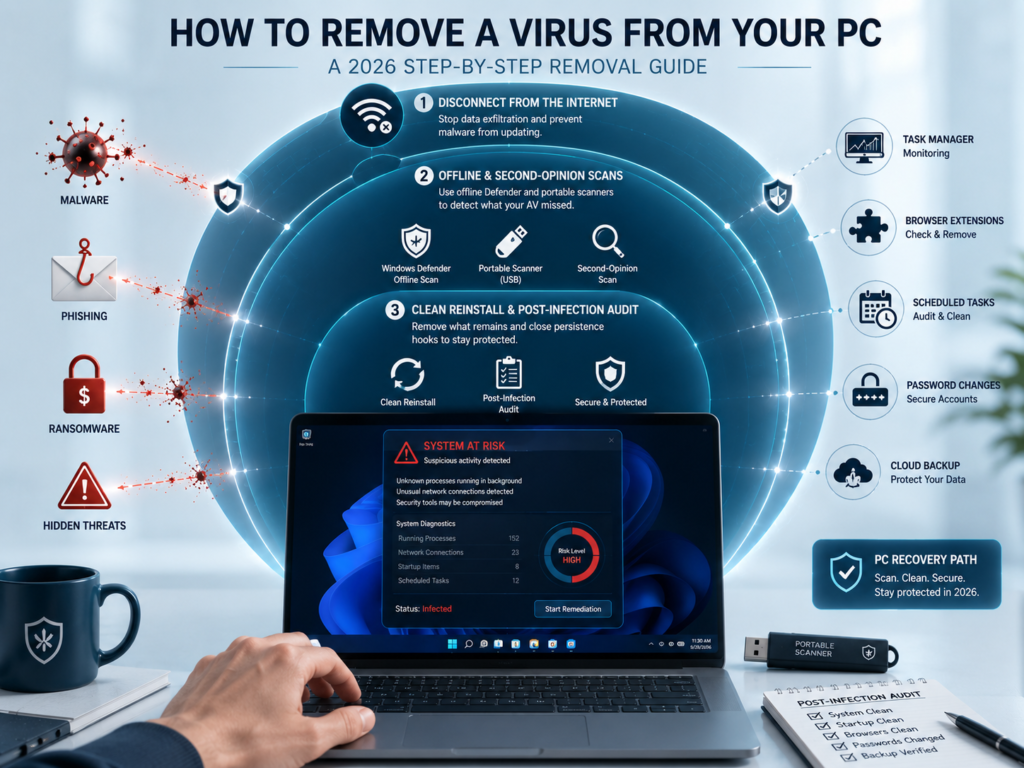
Immediately disconnect from the internet to stop active data exfiltration. Then work through three escalating levels: (1) Windows Defender Offline — scans before the OS boots, catching what live scans miss. (2) A portable second-opinion scanner run from a USB stick, bypassing malware that blocks new installations. (3) Full clean reinstall if symptoms survive both. Then run the 24-hour post-infection audit to close the persistence hooks your scanner left behind.
Step 0: Identify what you’re actually dealing with
Before touching any tool, confirm the infection pattern. Not all slowness is malware — but the following symptoms together are nearly impossible to explain otherwise.
CPU/RAM spike at idle: Something is running when nothing should be. Open Task Manager — sort by CPU descending.
Browser hijacking: New tabs, changed homepage, or search redirects. Extensions may have been silently injected.
Fan noise at idle: Constant fan spin with nothing open = cryptominer or exfiltration process running hidden.
Unexplained network activity: Router lights blinking when the PC looks idle. Data is leaving your machine without your knowledge.
Security tools blocked: Task Manager, Regedit, or your antivirus won’t open. The malware is actively fighting back.
Scheduled tasks appeared: Unknown entries in Task Scheduler that relaunch on every reboot — the most common persistence mechanism.
Do this first — before any scan
Disconnect from the internet immediately. Unplug the ethernet cable or turn off Wi-Fi in Windows settings. Some 2026 malware actively updates its evasion code when it detects a scanner launching. Cutting the connection prevents this and stops active data exfiltration while you work.
Why your scanner said “clean” — the 2026 evasion problem
If you’re here because a scan found nothing but the PC still feels infected, you are not imagining it. There are three reasons a scanner can come back clean despite an active infection, and all three are increasingly common in 2026.
AI mutation
Polymorphic code
The malware rewrites its own code between infections. Every copy has a unique signature that no database has ever seen. Signature scanners cannot match what has no match.
LOLBins
Living off the land
Uses built-in Windows tools — PowerShell, WMIC, certutil, msiexec — to execute payloads. No suspicious file ever lands on disk. No file to scan.
Fileless
Registry or WMI storage
The payload lives entirely in the Windows registry or WMI event subscriptions. Traditional scanners look at files. These never write one.
Self-defense
Active blocking
Some variants intercept security tool launches and return fake “all clear” results. The scan runs — it just never sees the real process list.
This is why a second-opinion scanner is no longer optional. Each tool uses different detection heuristics, different threat databases, and different behavioral engines. A clean result from one tool means nothing in isolation.
Step 1: Kill chain triage — use Task Manager as a detective tool
Before touching any removal tool, observe what is actually running. Most malware processes are visible in Task Manager — they just hide behind convincing system-like names. Run these checks now, on whatever you have, even if the PC feels sluggish.
- 1 Open Task Manager in detail mode: Press
Ctrl + Shift + Esc→ click “More details” if it shows a compact view. Sort by CPU descending, then by Memory. You are looking for processes consuming resources with no open window to explain it. - 2 Verify every suspicious executable path: Right-click any unfamiliar process → “Open file location.” Legitimate Windows processes live in
C:\Windows\System32. A process namedsvchost.exelocated insideC:\Users\[name]\AppData\Roaming\is not legitimate — it is malware impersonating a system process name. - 3 Look for “high entropy” behaviour in plain terms: Processes using lots of CPU with no visible window. Processes with purely random character strings as names. Processes that restart themselves within seconds of you ending them — this restart behaviour is the clearest sign of a persistence mechanism actively protecting itself.
- 4 Check active network connections: Open Command Prompt as administrator. Run:
netstat -b 5. This prints every process making a network connection, refreshed every 5 seconds. Look for unfamiliar processes connecting to external IPs while you are doing nothing. That is your exfiltration path. - 5 Cross-check anything suspicious on VirusTotal: Navigate to
virustotal.comfrom a clean device or phone. Upload the suspicious executable you found. VirusTotal runs 70+ detection engines simultaneously — even if your local AV missed it, one of those engines will likely catch it if it is known malware.
The installation block trap
Most competing guides tell you to “download a new antivirus.” In 2026, this advice fails for a significant portion of infected machines. Advanced malware actively blocks outbound connections to security domains and terminates security-related executable installers before they can run. If this is happening to you, skip to Level 2 below — portable scanners that require no installation at all.
Step 2: The nuclear option hierarchy
Work through these three levels in order. Start at Level 1. Only escalate if symptoms persist after a full scan at the current level. Each level is more powerful than the last — and harder to circumvent.
Level 1
Windows Malicious Software Removal Tool (MSRT)
Your fastest first pass. Built into every Windows installation, updated monthly by Microsoft, and specifically targets the highest-volume malware families in current circulation — ransomware, trojans, worms, cryptominers. Runs silently on Patch Tuesday; you can force a full scan manually at any time.
If it removes something but symptoms return within a day, move to Level 2 immediately
Press Win + R, type mrt, press Enter
Select “Full Scan” — not Quick Scan
Allow it to complete fully (30–60 minutes is normal)
Review the log at %windir%\debug\mrt.log after completion
Level 2
Portable second-opinion scanners — zero installation required
This is the most important level for the “scan says clean” scenario — and the one most competing guides skip entirely. Portable scanners run from a single downloaded file or a USB stick. No installation. No registry footprint. This is critical because malware that blocks installer execution cannot block a portable executable that is already on disk.
Download these on a clean machine, copy to a USB drive, and run directly on the infected PC:
- Malwarebytes portable version — excellent at adware, PUPs, and browser hijackers that traditional AV categorically ignores
- ESET Online Scanner — runs entirely from a small downloaded executable, uses ESET’s enterprise-grade engine, no installation needed
- Microsoft Safety Scanner — free, downloads fresh definitions every time you run it (never cached, always reflecting latest threats)
- HitmanPro — behavioural analysis plus cloud lookup; excellent at exposing rootkits that signature scanners miss
Run each scanner, restart the PC before running the next. Some malware loads differently after a clean boot and becomes detectable on a second pass that it evaded on the first.
Level 3
Offline scan — runs before Windows boots, before the malware loads
The most powerful option short of a full reinstall. Advanced malware — rootkits, bootkits, and fileless threats stored in WMI — loads before Windows does. By the time your antivirus starts, the malware is already active and can hide from it. An offline scan solves this by scanning your drive before any OS process loads at all.
Windows Defender Offline (built-in, no download required):
- Open Windows Security → Virus & threat protection
- Click “Scan options” → select “Windows Defender Offline scan”
- Click “Scan now” — the PC restarts and scans run at boot, before Windows loads
- Results appear in Windows Security after the PC boots back into Windows normally
Alternative — bootable USB rescue environment:
- Kaspersky Rescue Disk or Avira Rescue System — boot from USB into a Linux environment and scan the infected Windows drive as an external volume
- No Windows process from the infected drive runs at all — the malware has nowhere to hide
- This is the absolute maximum power available without a reinstall
Note on Safe Mode: Legacy malware variants increasingly inject processes directly into Safe Mode network drivers. Standard Safe Mode is no longer a reliable diagnostic environment — use the Defender Offline or bootable USB approaches instead.
Skip to Level 3 immediately if
Your Task Manager, Regedit, or antivirus will not open at all — or if the malware reappears within hours of removal. Malware that blocks your tools is actively fighting back and will circumvent Levels 1 and 2 entirely. Go straight to the offline boot approach.
The browser blindspot: why Chrome users have less protection than they think
One of the most significant gaps that competing guides miss entirely: Windows Defender’s web protection layer — SmartScreen — operates completely differently depending on which browser you use. If you use Chrome or Firefox, you are missing its most effective real-time web filtering.
| Browser | SmartScreen status | Phishing protection | Malicious download blocking |
|---|---|---|---|
| Microsoft Edge | Full integration | Strong | Strong |
| Google Chrome | Partial only | Moderate | Moderate |
| Firefox | Not integrated | Moderate (Mozilla’s own list) | Moderate |
| Brave / Vivaldi | Not integrated | Moderate (browser’s own) | Moderate |
Chrome and Firefox download files to a temp folder before Defender scans them. That brief window — between download completion and Defender’s scan trigger — is when drive-by malware executes. The practical mitigation if you use Chrome: enable Google Safe Browsing’s Enhanced mode in Chrome settings, and consider a DNS-level filter like Cloudflare 1.1.1.1 with WARP or Quad9. Neither requires paying for antivirus.
Step 3: The 24-hour post-infection audit
Most guides stop at “scan complete.” This is the part that actually prevents reinfection. Even after successful removal, malware frequently leaves behind persistence mechanisms — silent hooks that reinstall it after the next reboot. Work through every item below before considering the machine clean.
- Audit all scheduled tasks: Open Task Scheduler (search in Start). Expand “Task Scheduler Library.” Delete any task with a random-character name, any task pointing to files in AppData or Temp, and any task set to run at login that you did not create. This is malware’s primary reboot survival mechanism in 2026.
- Review all startup programs: Task Manager → Startup apps tab. Disable anything unfamiliar, especially entries pointing to AppData or Temp directories. Also run
msconfig→ Services → check “Hide all Microsoft services” → disable any unknown remainder. - Purge every browser extension: In every browser you use, remove every extension you did not consciously install yourself. Browser extensions survive OS-level scans entirely and can silently exfiltrate session cookies, banking passwords, and clipboard content in real time.
- Reset all browser settings to factory defaults: Chrome: Settings → Reset and clean up → Restore settings to original defaults. Firefox: Help → Troubleshooting information → Refresh Firefox. Removes malware-injected proxy settings, custom search engines, and homepage hijacks that survive removal scans.
- Revoke OAuth app permissions — Google account: myaccount.google.com → Security → Third-party apps with account access. Revoke every app you do not recognise. OAuth access lives in Google’s servers — it survives a complete PC wipe and gives attackers ongoing account access without your password.
- Revoke OAuth app permissions — Microsoft account: account.microsoft.com → Privacy → Apps and services that can access your data. Revoke anything unrecognised. Critical if you use Microsoft 365, Outlook, or OneDrive — an active OAuth token gives an attacker persistent access without needing your password again.
- Check WMI event subscriptions (advanced): Open PowerShell as administrator. Run:
Get-WMIObject -Namespace root\subscription -Class __EventFilter. Any results you don’t recognise are fileless malware WMI subscriptions — how the most sophisticated persistent threats survive reboots entirely. Search the subscription name online to identify it. - Audit active sessions on all important accounts: Check Google, Microsoft, and any banking or financial account for unrecognised active sessions or recent logins from unknown locations. Revoke all sessions you don’t recognise. This catches session cookie theft that happened before you disconnected from the internet.
- Change passwords from a clean device; Do not change passwords on the infected PC. Use a phone or another computer. Prioritise: email accounts, banking, any account with saved payment details, any site where you reused a password. Assume every password typed on the infected PC was captured by a keylogger.
When removal fails: the clean reinstall
If symptoms persist after all three scanning levels and the complete audit, the honest answer is that a clean reinstall is safer than continuing to operate the machine. Modern rootkits can survive in places no scanner reaches — UEFI firmware, the boot sector, or hardware-level compromises on peripherals.
Windows 11 Reset — cloud download
Settings → System → Recovery → Reset this PC → Remove everything → Cloud download. This downloads a guaranteed-clean Windows 11 image directly from Microsoft’s servers — not from your potentially-compromised local recovery partition. Back up personal files to an external drive first. Do not back up executables or application data — only documents, photos, and media. The cloud download option ensures the OS image itself has not been tampered with.
How to make sure this doesn’t happen again
- Enable Memory Integrity (Core Isolation) in Windows Security → Device Security — prevents the kernel injection that most advanced malware requires to persist
- Keep Windows Update on automatic — the majority of successful 2026 consumer attacks exploit unpatched vulnerabilities, not detection failures
- Use a password manager and hardware 2FA — account takeover via stolen credentials is statistically more likely than a malware infection for most users
- Never disable Defender to install software — if an installer demands this, the installer is the infection
- Keep a portable scanner on a USB stick at all times — Malwarebytes or ESET portable on USB means you can scan even when the PC blocks new installations
- Use Edge for banking and financial tasks even if you prefer Chrome for general browsing — SmartScreen’s full integration with Edge provides real protection that Chrome does not receive
Frequently asked questions
It most likely means the threat is fileless (living in memory, the registry, or WMI event subscriptions — never writing a detectable file to disk), polymorphic (AI-rewritten so its signature matches nothing in any database), or is using legitimate Windows tools as its execution engine so no suspicious process shows up. Run Windows Defender Offline to scan before the OS loads, then follow with a portable second-opinion scanner using a different detection engine. Also audit your scheduled tasks and startup programs — persistence mechanisms frequently survive standard scans even after the primary payload is removed.
For basic offline tasks only. Do not log in to banking, email, or any account where compromise would cause serious harm. Do not type passwords — assume a keylogger is active. Disconnect from the internet before running any removal tool. Some 2026 malware actively updates its evasion instructions when it detects a scanner launching — cutting the network connection prevents this and stops any ongoing data exfiltration.
The standard “Reset this PC → Remove everything → Cloud download” removes virtually all malware for consumer users. The rare exceptions — UEFI firmware infections and hardware-level compromises — are almost exclusively found in nation-state attacks against high-value targets. For the vast majority of users, a cloud-download reset produces a provably clean system. Do not restore from a system backup — the backup was created while infected. Restore only personal files: documents, photos, and media — not applications.
A fileless virus never writes an executable to your hard drive. It executes entirely in RAM, persists through the Windows registry Run keys, or lives in WMI event subscriptions that trigger on reboot. Because there is no file to scan, traditional signature-based AV consistently misses it. Removal requires: an offline scan (Defender Offline), manually checking WMI subscriptions via PowerShell, and auditing the registry’s Run and RunOnce keys under both HKCU and HKLM. In severe cases, a clean reinstall is the only reliable solution.
Account takeover by a significant margin. Credential stuffing from breached databases, phishing, and session cookie theft account for the vast majority of real-world consumer security incidents. A password manager and hardware or app-based two-factor authentication statistically protect you more than any antivirus suite. Antivirus is essential — but it is not a substitute for strong account security practices.
Legitimate Windows scheduled tasks have descriptive English names, are located in the root Task Scheduler Library or in Microsoft\Windows subfolders, and point to executables in System32 or well-known application directories. Be suspicious of tasks with random character strings in their names, tasks pointing to files in AppData, Temp, or Roaming, tasks created around the exact time you noticed symptoms, and tasks set to run every time any user logs in. You can safely disable a suspicious task temporarily — if nothing breaks within 24 hours, delete it.
PC back to normal? Now close the gap that let this happen.
Find the right level of protection for your actual usage — whether that is staying with a configured Defender or adding a specialist behavioural tool.